
HP printer test page
HP printers have two useful test pages, and neither of them is the one Windows prints. There is HP’s own Print Quality Diagnostic Report, which is generated by the printer and tells you about HP hardware, and there is a page like the one below, which travels the whole path from your computer through the driver to the paper. Print both when something is wrong: if HP’s own page is clean and this one is not, the fault is in the driver or the connection rather than the printer.
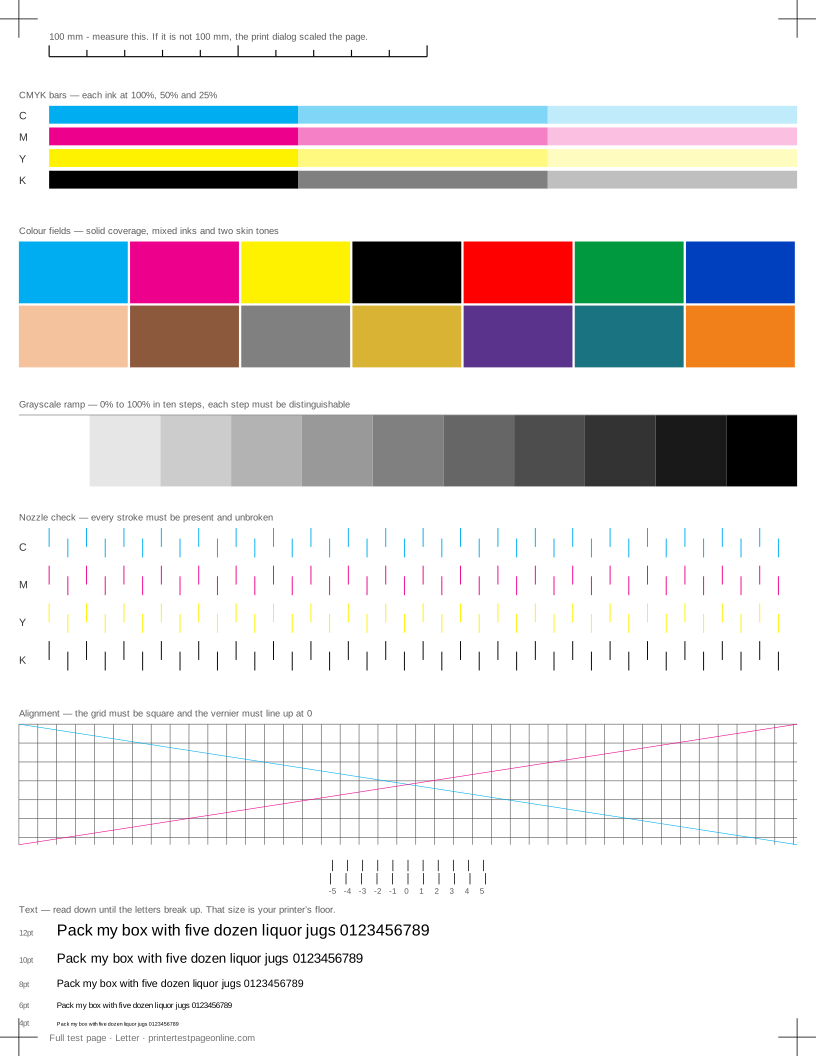
The sheet below works on any HP model — DeskJet, ENVY, OfficeJet, Smart Tank, LaserJet and Color LaserJet — because it is a normal web page, not an HP utility.
Printing HP’s own quality report
On most HP inkjets with a touchscreen, it is under Setup or Tools, then Reports or Printer Reports, then Print Quality Report. On the HP Smart app it sits under Printer Settings, then Tools or Maintenance. On models with only buttons, the report is usually produced by holding a button combination at power-on, and the exact one is in that model’s manual.
The report prints four colour bars and a diagnostic block. HP’s report is good at telling you which cartridge is at fault and nothing at all about alignment or scale, which is where the sheet here is the better tool.
Cleaning an HP printhead
HP splits cleaning into levels. Level 1 is quick and uses little ink, level 2 and level 3 use a lot more. Run level 1, print the nozzle check here, and only escalate if there is still a gap. The three-cycle rule holds on HP hardware as firmly as anywhere: if level 3 has not cleared the blockage, another round will not.
On models where the printhead is part of the cartridge — most DeskJet and ENVY cartridges — a blocked head is a cartridge problem, and a new cartridge is a new head. On OfficeJet and Smart Tank models the head is separate and replaceable, which changes the economics of a bad clog.
Cartridge protection and third-party ink
HP firmware checks cartridges, and a firmware update can start rejecting a third-party cartridge that worked the day before. If a colour has vanished from the test sheet and the printer is complaining about a cartridge rather than about ink levels, that is a recognition problem, not a print-quality problem, and no amount of cleaning will change it.
Dynamic security and HP+ enrolment are worth knowing about before buying ink: an HP+ printer will only accept HP cartridges for its lifetime, and that is a setting made at setup time which cannot be undone later.
HP LaserJet faults on this sheet
On a LaserJet, ignore the nozzle check and read the solid black block and the grayscale ramp. Repeating marks identify a roller by their spacing; a pale patch in the same place every page points at the drum; toner that rubs off a cooled page points at the fuser. Print the laser test page for a sheet with the inkjet-only blocks removed.
Other brands
If the sheet shows a fault
Frequently asked questions
How do I print a test page on an HP printer?
Use the sheet on this page and press Print this page, or print HP’s own Print Quality Report from Setup, then Reports on the printer itself. The first tests the whole path from computer to paper; the second tests the printer alone.
Where is the printhead cleaning option on HP?
On the printer: Setup or Tools, then Maintenance or Printer Maintenance, then Clean Printhead. In HP Smart: Printer Settings, then Print Quality Tools. In Windows: printer properties, then the Device Services or Maintenance tab.
Why does my HP printer say the cartridge is not compatible?
That is cartridge recognition rather than ink. It happens with third-party cartridges after a firmware update, with refilled originals whose chip has been used up, and on HP+ printers, which accept only HP cartridges permanently.