
Printer will not print anything
When nothing comes out, the useful first question is how far the job got. A job that never leaves the queue, a job that leaves and produces a blank sheet, and a printer that does not respond at all are three different faults, and the queue tells you which one you have in about ten seconds.
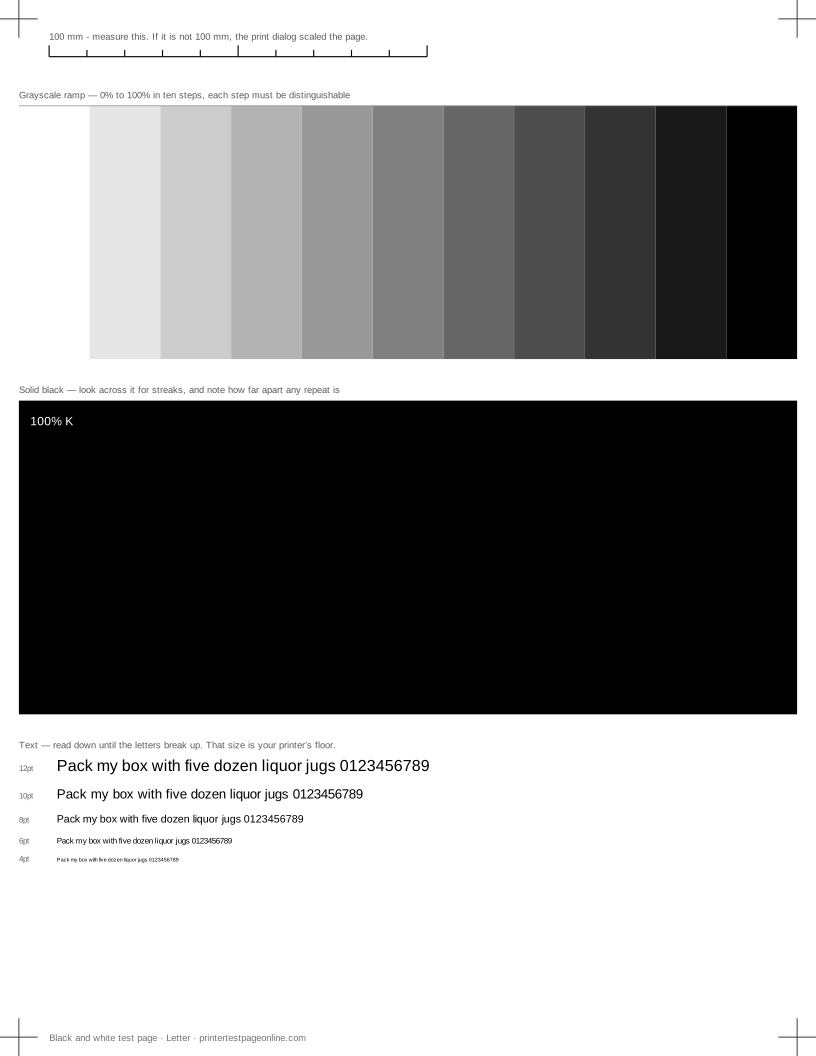
Work down this page in order and print the sheet below as the confirmation step once something changes.
Look at the queue first
Open the print queue. A job sitting at the front marked Error or Paused blocks everything behind it, and cancelling it often releases a backlog that has been building for days. A queue that shows Printing while nothing moves usually means the spooler has hung, which a spooler restart clears.
An empty queue with nothing coming out means the job never reached the printer at all. That points at the application or at the job being sent to a different printer entirely — a surprisingly common cause when a PDF writer or a disused printer is set as default.
Confirm the printer is reachable
Print the printer’s own self-test from its front panel. If that works, the printer and its hardware are fine and the problem is in the path from the computer. If it does not, the fault is in the printer: check for an error on the panel, a jam, an open cover, an empty tray or a cartridge the printer will not accept.
On a network printer, check that it still holds the address the computer was set up with. Addresses handed out by a router expire, and a printer that has quietly moved is the most common cause of a printer that worked last week and is offline now.
Paper feeds but the page is blank
That is a different fault with its own page: tape still on a cartridge, a dried print head, or a job that really was blank. It is good news in one respect, because it means every part of the chain from the computer to the paper path is working.
Driver and connection
Reinstalling the driver is where most guides start and where it belongs last, because it fixes a narrow set of problems and costs an afternoon. Do it when the self-test prints, the queue is clear, the printer is reachable and jobs still vanish.
Before that, try the cheaper versions: remove and re-add the printer, which picks up its current address and rebuilds the queue, and on USB try a different cable and port. A marginal USB cable produces exactly this symptom and looks identical to a software fault.
Causes, cheapest first
The page came out completely blank
| Cause | What to do | Applies to |
|---|---|---|
| Tape or a seal is still on a new cartridge | Pull the cartridge and check every tab before anything else. | both |
| The head has dried out after a long idle period | Run two cleaning cycles an hour apart; if the nozzle check is still blank, the head needs servicing. | inkjet |
| The job went to a different printer or a virtual one | Check which printer the job went to, and that it is not set to print to file or to a PDF writer. | both |
More troubleshooting
Frequently asked questions
Why is my printer not printing anything?
Check the queue first — a stuck job at the front blocks everything behind it. Then print the printer’s own self-test to split the problem between the printer and the computer.
How do I clear a stuck print queue?
Cancel every job in the queue, then restart the print spooler service. On macOS, the equivalent is resetting the printing system, which removes and rebuilds all queues.
Should I reinstall the printer driver?
Only after the self-test prints and the queue is clear. Removing and re-adding the printer is faster, less disruptive and fixes most of what a reinstall would.