
Printer printing the wrong size
Wrong-size printing is the one fault you cannot judge by eye, because a page scaled to 97% looks completely normal until you measure it. That is why every sheet on this site carries a 100 mm ruler: print one, measure the ruler, and you know within seconds whether the print dialog resized the page.
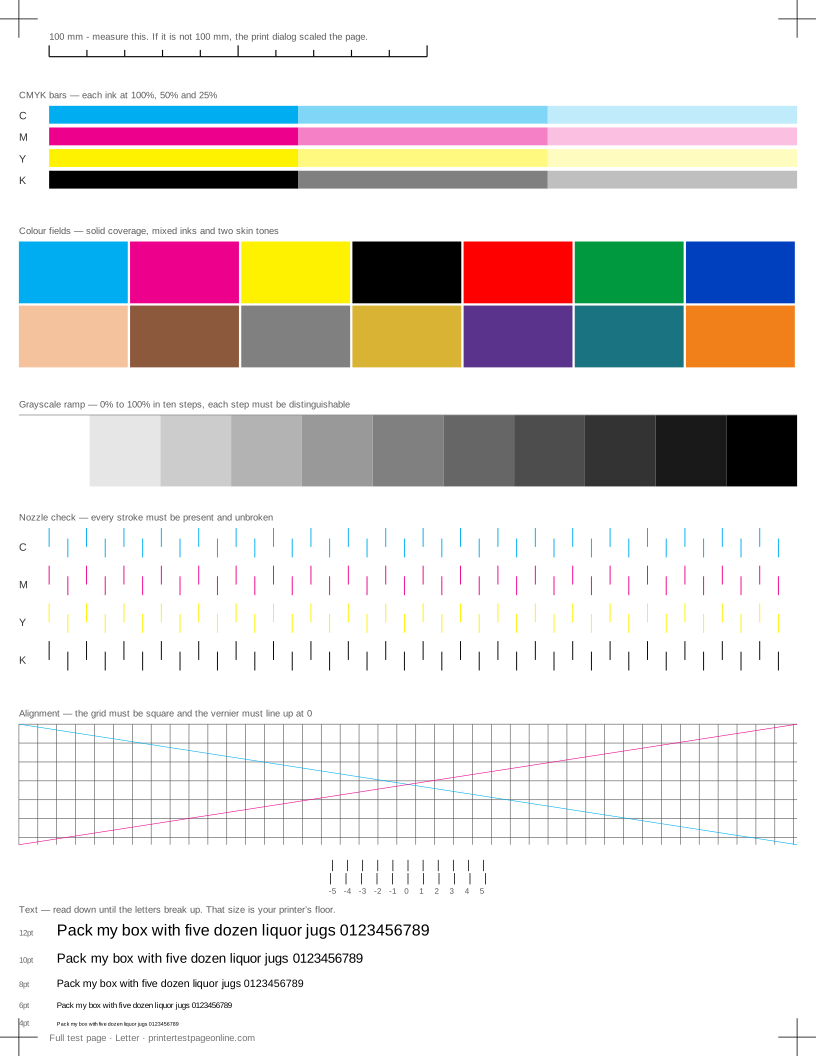
It matters beyond test sheets. Anything printed to scale — a sewing pattern, a woodworking template, a photo meant to fit a frame, a form with fixed fields — is wrong in the same invisible way.
Scale to fit is usually the culprit
Print dialogs default to Fit to Page, Shrink Oversized Pages or Scale to Fit, and all of them silently resize the document to clear the printer’s unprintable margin. The result is a page that is a couple of percent small and shifted. Set scale to 100% explicitly — in the browser print dialog, in Acrobat, and in the printer driver, because each has its own copy of the setting.
Then reprint and measure the ruler. If 100 mm measures 97 mm, something in the chain is still scaling; if it measures 100 mm, the page is true.
Paper size mismatch
A Letter document sent to a printer loaded with A4 will be resized or clipped, and the reverse gives you a page with a wide margin at one edge. The mismatch is easy to miss because both look like "a page".
Check three places: the paper actually in the tray, the size set in the printer’s own menu, and the size set in the print dialog. All three have to agree. The A4 sheet here is 210 × 297 mm and the Letter sheet is 215.9 × 279.4 mm, so the two differ in both directions and the symptom differs with them.
Edges cut off
Every printer has an unprintable margin near the edge, typically around 5 mm, and it varies by model and by edge. Content inside that band cannot print at all, which is why full-bleed printing needs a borderless mode and larger paper.
If the corner registration marks on the test sheet are clipped, your printer needs more margin than 5 mm — or the driver is compensating by scaling, which brings the first problem back.
Printing at true scale, reliably
Three habits cover almost every case. Set scale to 100% rather than Fit to Page. Match the paper size in the dialog to the paper in the tray. Then measure a known dimension on the output before trusting anything else on the page — which is exactly what the ruler on these sheets is for.
Causes, cheapest first
The crop marks or edges are cut off
| Cause | What to do | Applies to |
|---|---|---|
| The print dialog is scaling the page | Set scale to 100% (not "Fit to page"), or the sheet is no longer true-scale and no measurement on it means anything. | both |
| The printer cannot print that close to the edge | Print the sheet again at a wider margin; most consumer printers hold 5 mm, some need 8. | both |
More troubleshooting
Frequently asked questions
Why is my printer printing smaller than the page?
Fit to Page or Shrink Oversized Pages is on somewhere in the chain. Set scale to 100% in the print dialog and the driver, then measure the ruler on a test sheet to confirm.
How do I print at actual size?
Set scale to 100%, match the paper size to the tray, and verify with a printed ruler. Do not trust the preview — a 2% scale is invisible on screen.
Why are the edges of my prints cut off?
Printers cannot print right to the edge; anything inside the unprintable margin is lost. Either move the content in, or use a borderless mode if the printer has one.