
Prints are faded or washed out
A faded print is one where everything is there but nothing is dense: grey where black should be, pastel where colour should be. It looks like a dying printer and is usually a setting, which makes it one of the cheapest faults to fix once you know where to look.
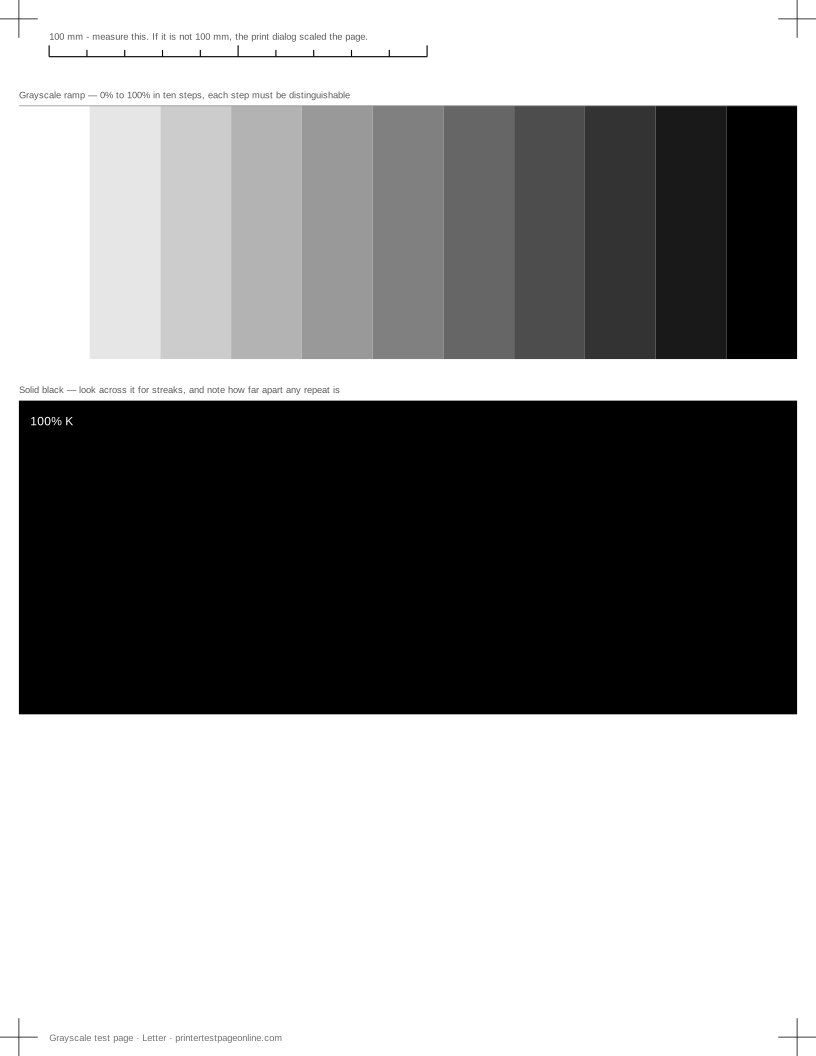
Print the grayscale ramp below. If the dark end of the ramp never reaches a convincing black, the fault is density rather than a blockage.
Draft and economy modes
Draft, Fast, EconoMode and Toner Save all reduce how much ink or toner reaches the paper, and on office printers at least one of them is usually switched on by default. The setting exists in three places — the print dialog, the driver defaults and sometimes the printer’s own menu — and turning it off in one does not turn it off in the others.
Set quality to Normal or Best in all three, reprint the ramp, and compare the two sheets. The difference is usually larger than people expect.
The media type setting
Drivers lay down different amounts of ink for different papers. Plain paper settings meter ink conservatively so it does not spread; photo settings lay down far more. Printing photo stock on a plain-paper setting gives exactly the washed-out look this page is about, and doing the reverse gives a wet, smudged page.
Match the media setting to what is actually loaded. It is the second most common cause of faded output and it costs nothing.
Low ink and low toner
Fading that gets steadily worse, or that affects one side of the page more than the other, points at supply. A laser toner cartridge fades and bands before it stops; rocking it gently side to side redistributes what is left and buys a few more pages, which confirms the diagnosis rather than fixing it.
On an inkjet, uniform fading across all channels points at ink; fading in one channel points at that channel, and the CMYK test page identifies it.
Paper and humidity
Paper that has absorbed moisture prints paler and smudges more easily, and a ream left open in a damp room does that within weeks. If prints are faded and the page also feels slightly wavy, try a fresh ream from sealed packaging before changing anything else.
Causes, cheapest first
Everything prints pale or washed out
| Cause | What to do | Applies to |
|---|---|---|
| The driver is set to draft or eco mode | Set quality to Normal or Best in the print dialog and reprint. | both |
| Ink or toner is low | Replace the low cartridge. Shaking a laser cartridge side to side buys a few more pages, not more. | both |
| The driver is set to the wrong paper type | Match the paper setting to what is loaded; plain-paper settings lay down less ink on photo stock and vice versa. | both |
Ink or toner smudges when you touch it
| Cause | What to do | Applies to |
|---|---|---|
| The fuser is not reaching temperature (laser) | If toner rubs off a cooled page, the fuser is failing and needs replacing. | laser |
| The paper is heavier or glossier than the driver thinks | Set the correct media type so the printer adjusts drying time and heat. | both |
| The ink has not dried (inkjet, heavy coverage) | Let a heavy page sit for a minute before stacking it. | inkjet |
More troubleshooting
Frequently asked questions
Why are my prints so light?
Draft or economy mode first, then the media type setting, then low ink or toner. Print the grayscale ramp with quality set to Normal and compare it against the draft version.
Why does my toner rub off the page?
The fuser is not reaching temperature, or the driver is treating heavy stock as plain paper and not giving it enough heat. If toner rubs off a page that has cooled, the fuser is the part to look at.
Does paper affect print density?
Considerably. Uncoated and damp paper absorbs ink into the fibres, which flattens density and softens text. Try a fresh ream before assuming the printer is at fault.