
How to print a test page on a Mac
macOS does not have a Print Test Page button of the kind Windows offers, which catches people out. What it has instead is a printer list that reports the printer’s state, a queue you can inspect, and the printer’s own self-test — and, for print quality, a sheet like the one below.
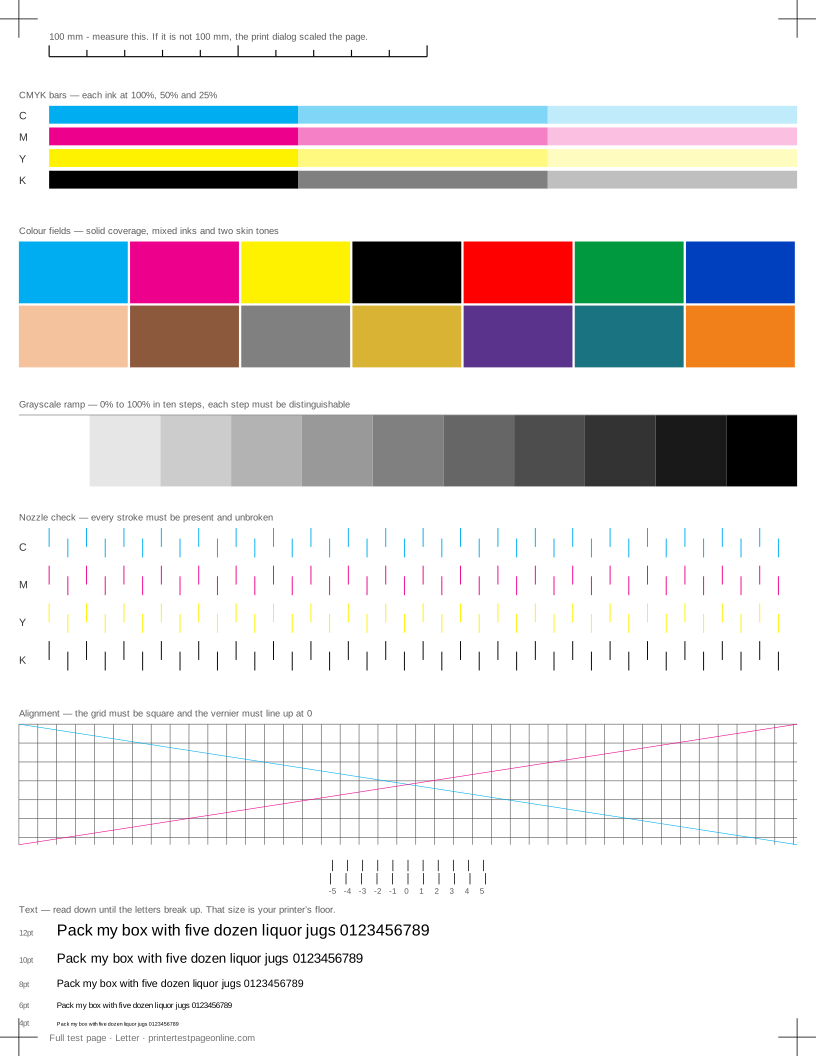
The practical answer on a Mac is to print something you know the appearance of, which is exactly what a test sheet is for.
Check the printer is reachable
Open System Settings, then Printers and Scanners, and select the printer. If it shows as Idle, macOS can reach it. Open the print queue to check nothing is paused or held; a paused queue is the macOS equivalent of the Windows offline state and is easy to miss.
If the printer is missing from the list, add it with the plus button and pick it from the discovered devices rather than typing an address — that way it is added with its current address rather than an old one.
Print the test sheet
Use the sheet on this page and press Print this page. In the macOS print dialog, open the details view and check two things: that Scale is 100% rather than Scale to Fit, and that the paper size matches what is in the tray. Both silently resize the sheet otherwise, and the printed ruler will show it.
The macOS print dialog also carries the printer’s own feature panels — media type, quality, colour matching — under the menu in the middle of the dialog. That is where draft mode and paper type live on a Mac.
The printer’s own self-test
Most printers print a self-test or configuration page from their front panel, usually under Reports, Information or Maintenance. That page never touches the Mac, so comparing it with a page printed from the Mac splits the problem cleanly between the printer and the computer.
Manufacturer utilities — nozzle checks, head cleaning, alignment — live in Printers and Scanners under Options and Supplies, then Utility, on the models that ship them.
Resetting the printing system
macOS has a full reset: right-click, or control-click, inside the printer list and choose Reset printing system. It removes every printer and queue and starts clean, which fixes stubborn queue faults that survive removing one printer. It is a last resort because every printer has to be added again afterwards.
More troubleshooting
Frequently asked questions
How do I print a test page on a Mac?
macOS has no built-in test page button. Print the sheet on this page with Scale set to 100%, or print the printer’s own self-test from its front panel.
Where are the printer maintenance tools on macOS?
System Settings, Printers and Scanners, select the printer, then Options and Supplies, then Utility — on printers whose manufacturer ships a macOS utility.
My Mac says the printer is paused. What does that mean?
The queue is holding jobs rather than sending them, usually after a failed job. Open the queue and press Resume; cancel anything stuck at the front first.