
Printer self-test page
A self-test page is printed by the printer alone, using its own panel and its own stored pattern. Nothing is sent from a computer, which is exactly what makes it useful: if the self-test prints cleanly, the printer, its cartridges and the paper path are all working, and whatever is wrong lives in the driver, the cable or the network.
That split saves the most time in the whole of printer troubleshooting. Half an hour spent reinstalling drivers is wasted if the print head is clogged, and half an hour spent cleaning the head is wasted if the printer was never receiving the job.
How to print one, by brand
The exact combination differs by model, but the families are consistent. With the printer on, paper loaded and idle, try the sequence for your brand:
- HP — on panel models, Settings → Reports → Printer Status Report or Print Quality Report. On button-only models, hold Cancel (X) and press Resume, or hold Resume for about ten seconds until a page feeds.
- Canon — Setup → Maintenance → Nozzle Check on panel models. On PIXMA button models, hold Resume/Cancel until the alarm lamp flashes twice, then release.
- Epson — Settings → Maintenance → Print Head Nozzle Check. On button models, power the printer off, then hold the ink drop or load/eject button while powering it back on.
- Brother — Menu → Print Reports → Print Settings, or Ink → Test Print → Print Quality Check. On laser models, hold Go and press it twice more within two seconds.
- Anything else — hold the only button the printer has for roughly ten seconds while it is idle. On the majority of small printers that prints a configuration page.
What the self-test page actually shows
Most self-test pages carry a firmware version, a page count, the network address if the printer has one, ink or toner estimates, and a small print-quality pattern. The network address is the part people overlook — comparing the address on the page with the address the driver is pointing at resolves a large share of "printer is offline" problems in one glance.
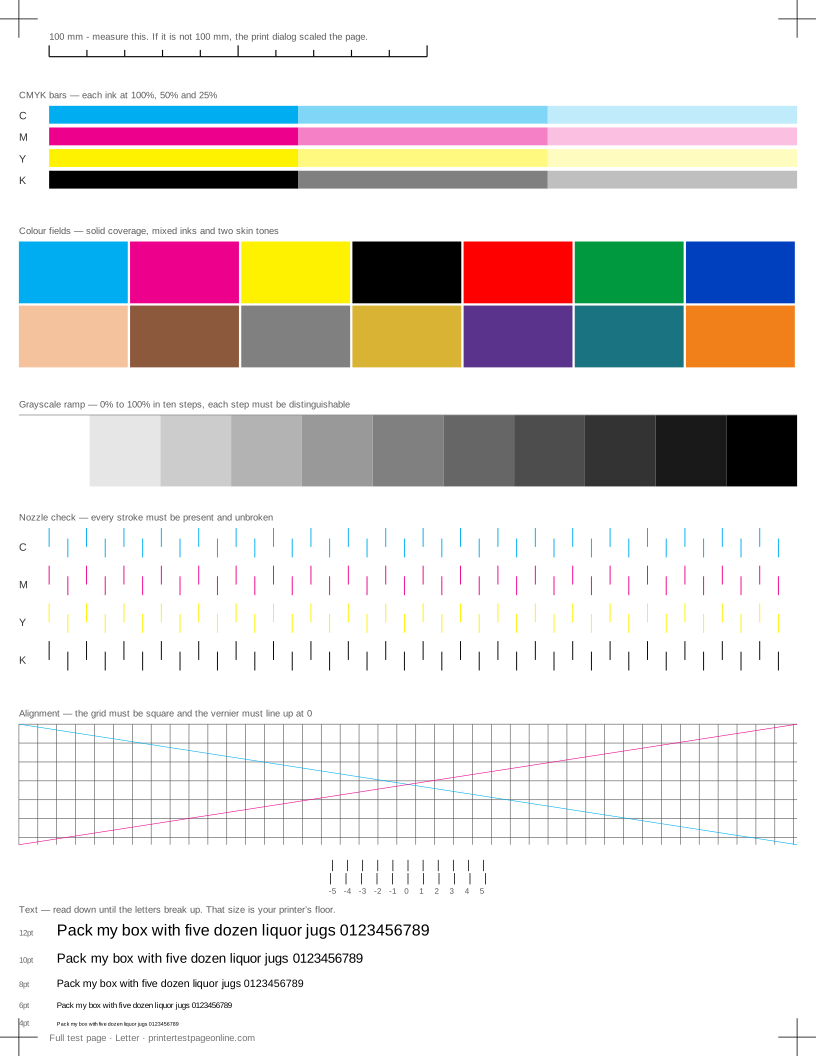
The print-quality pattern on a self-test page is deliberately small, because the printer has to store it in firmware. That is where this site earns its place: the sheets here are larger, print every ink channel across a fixed geometry, and carry a ruler so you can verify scale as well as quality.
Reading the two outcomes
If the self-test page prints and looks correct, the hardware is fine. Move to the computer side: confirm the printer is not paused, that it is the default, that the driver points at the right address, and that no old job is stuck at the head of the queue blocking everything behind it.
If the self-test page prints badly, or does not print at all, the computer is irrelevant for now. A faulty self-test on an inkjet is almost always a clogged head or an empty cartridge; on a laser it is toner, the drum, or the fuser. Print a full test sheet from here once the printer responds again, so you have a before-and-after you can hold side by side.
When the self-test will not print at all
A printer that refuses its own self-test has a hardware or supply fault, not a software one. Check that a cover or cartridge door is fully closed, that every piece of orange shipping tape is removed on a new unit, that the tray is seated, and that no error lamp is lit. Many printers silently refuse to print anything while one cartridge is missing, even a colour you are not using.
If the panel shows an error code, that code is worth more than any generic advice — it names the subsystem. If nothing is lit and nothing feeds, power the printer off at the wall for a minute, which clears a surprising number of stuck states in printers that are otherwise sound.
Causes, cheapest first
The page came out completely blank
| Cause | What to do | Applies to |
|---|---|---|
| Tape or a seal is still on a new cartridge | Pull the cartridge and check every tab before anything else. | both |
| The head has dried out after a long idle period | Run two cleaning cycles an hour apart; if the nozzle check is still blank, the head needs servicing. | inkjet |
| The job went to a different printer or a virtual one | Check which printer the job went to, and that it is not set to print to file or to a PDF writer. | both |
More troubleshooting
Frequently asked questions
What is the difference between a self-test page and a test page?
A self-test page comes from the printer itself with no computer involved, so it tests only hardware. A test page is sent from a computer or phone, so it tests the whole chain: application, driver, connection and printer.
How do I print a self-test page with no computer?
Use the printer panel menu (Reports, Maintenance or Print Quality), or on button-only models hold the cancel or resume button for about ten seconds while the printer is idle.
My self-test page prints fine but my documents do not. Why?
The printer is healthy and the problem is upstream — a paused queue, a stuck job, the wrong default printer, or a driver pointing at an old IP address. Compare the address on the self-test page with the one in your printer settings.