
Print a test page from your phone
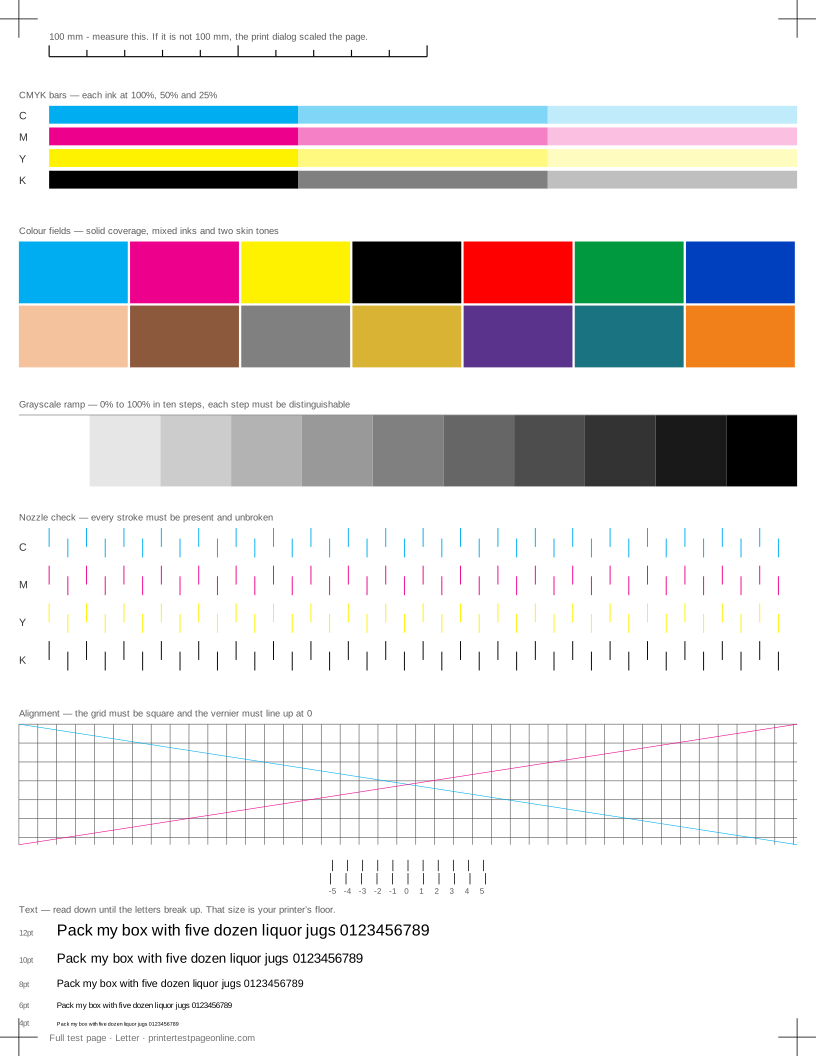
Printing a test page from a phone takes about fifteen seconds and needs no app: open the test sheet in the browser, share or print it, pick the printer, print. The sheets on this site are plain PDF and image output with no fixed layout tricks, so they behave identically from a phone and from a desktop.
It is also a genuinely useful diagnostic. A phone bypasses your computer’s drivers entirely, so if a page prints correctly from the phone and badly from the laptop, you have just proved the fault lives in the laptop’s driver or settings rather than in the printer.
iPhone and iPad (AirPrint)
Open the test sheet, tap the share icon, then Print. Your printer appears automatically if it supports AirPrint and sits on the same Wi-Fi network. Choose Letter or A4 to match the tray, set a single copy, and print.
Two settings decide whether the sheet is measurable. In the print preview, make sure scaling is not applied — iOS fits to the printable area by default on some printers — and that the paper size matches what is loaded. Then measure the 100 mm ruler on the printed sheet; if it measures short, the page was scaled and the rest of the sheet is proportionally off.
Android (Mopria or the maker’s app)
Android prints through the Mopria Print Service, which most modern printers speak. Open the sheet, tap the menu, choose Print, then pick the printer. If nothing is listed, install Mopria Print Service from the Play Store, or the manufacturer’s own plugin (HP Print Service, Canon Print Service, Epson Print Enabler, Brother Print Service).
In the print dialog, expand the options arrow. Paper size, colour and scale all live there, and the defaults are not always what you want — colour is sometimes set to black and white, which makes a colour test sheet look like a hardware fault when it is only a setting.
When the printer does not appear
Almost every discovery failure is a network problem rather than a printer problem. Phone and printer must be on the same network and the same band in practice: many printers are 2.4 GHz only, and a phone on the 5 GHz side of the same router will often not find them. Connecting the phone to the 2.4 GHz network is the single most effective fix.
Beyond that: check the router is not running client isolation or a guest network, which blocks devices from seeing one another; confirm the printer is actually on Wi-Fi rather than merely plugged into power; and print the printer’s own configuration page to read its IP address. Most Android print plugins let you add a printer by IP directly, which sidesteps discovery altogether.
Printing without Wi-Fi
If there is no network, most printers broadcast their own: Wi-Fi Direct on Android and HP, or a setup network with a name matching the model. Join it from the phone, print, then rejoin your normal network. It is slower to set up but works in a hotel room or on a new printer that has never been configured.
The other reliable route is a USB-C or Lightning to USB-B cable with an Android phone, which many print plugins support. On iOS there is no USB printing path, so Wi-Fi Direct is the fallback.
More troubleshooting
Frequently asked questions
Can I print a test page without a computer?
Yes. Any AirPrint or Mopria printer can print these sheets straight from a phone browser, and most printers can also print their own self-test page from the panel with nothing connected at all.
Why will my phone not find my printer?
Usually the phone is on 5 GHz and the printer is 2.4 GHz only, or the router isolates clients. Put the phone on the 2.4 GHz network, or add the printer by IP address from its configuration page.
Does printing from a phone give the same result as a computer?
The printer output is the same, but scaling defaults differ. Check the ruler on the printed sheet measures 100 mm before comparing a phone print against a desktop print.